
Meta Product Catalog Setup Guide (2026)
How to set up a Meta product catalog in Commerce Manager: connect Shopify or a feed file, map required fields, fix rejected images, and run catalog ads.
Updated September 2026 · Likit Sae Lee, CTO

To set up a Meta product catalog, open Commerce Manager, create a catalog, then add products by connecting Shopify or another platform, uploading a CSV/TSV/XML file, scheduling a feed URL, or using the Meta Pixel. Each item needs id, title, description, availability, condition, price, link, and image_link, with at least one of brand, gtin, or mpn. Prices use the number plus a three-letter ISO 4217 currency code, and images should be at least 1024x1024 and free of promotional text or overlays. A clean catalog is what every dynamic and Advantage+ catalog ad reads from.
Catalog ads only work as well as the catalog behind them. Most setup pain is not the wizard itself but the quiet rejections afterward: missing GTINs, images flagged for too much text, prices stripped of a currency code. This walkthrough gets you from an empty Commerce Manager to a clean, synced catalog that any shopping campaign can pull from without warnings.
What a Meta product catalog actually is
A catalog is the structured database of everything you sell. It holds each product's title, description, price, availability, link, and image, and Commerce Manager is where you create and manage it. Once it exists, every shopping format reads from it: dynamic product ads that retarget a browsed item, Advantage+ catalog ads that let Meta pick which products to show, collection ads with a live product strip, and your on-platform Shop.
The reason this matters is that catalog formats decouple the creative from the inventory. You are not building one ad per product. You build the data once, and the system assembles the right product for each viewer at delivery. That is powerful when the data is clean and frustrating when it is not, because a single wrong field can quietly pull an item out of circulation.
Two pieces work together here and are easy to confuse. The catalog is the inventory. The Meta Pixel is the behavioral signal layer on your website that records views, add-to-carts, and purchases. Dynamic retargeting needs both: the catalog supplies the products, the Pixel tells Meta which ones a given person cared about. You can build and even ship a catalog without the Pixel, but you cannot run true dynamic retargeting until the Pixel is firing the right events.
The stakes are simply commercial. E-commerce reached 16.9 percent of total U.S. retail sales in the first quarter of 2026 according to the U.S. Census Bureau, and EMARKETER forecast that e-commerce would account for around 20.5 percent of total retail sales worldwide in 2025. A product catalog is the connective tissue between that demand and your ads.
Step 1: Create the catalog in Commerce Manager
Open Commerce Manager from Business settings, choose to add a catalog, and pick the category that matches what you sell. For most online stores that is Ecommerce, which unlocks product-level fields like price and availability. Other catalog types exist for hotels, flights, destinations, and vehicles, but the standard product catalog is what powers retail shopping ads.
Assign the catalog to the right Business Manager and set permissions early. Decide which ad accounts can use it and which people can edit it. This is also where you connect a Pixel to the catalog so events and products are linked. Getting ownership right at the start saves a painful migration later, because a catalog created under a personal profile rather than your Business Manager is awkward to move.
Name the catalog something a teammate would recognize in six months, not "Catalog 1". If you genuinely run separate inventories, for example two distinct brands, create separate catalogs rather than mixing everything into one. Selling the same products into several countries is a different problem: one catalog with country feeds handles that, covered later, so you do not need a copy per market. One catalog can serve Facebook, Instagram, and Marketplace at the same time, so you do not need a copy per surface either.
Step 2: Choose how products get into the catalog
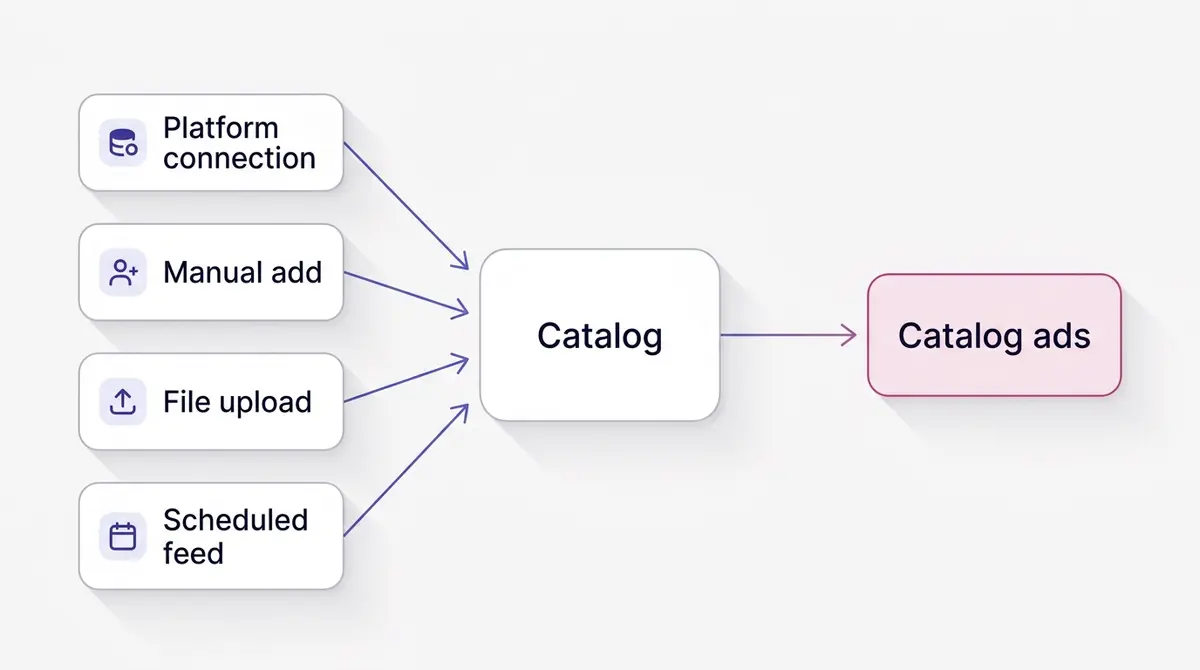
There are five ways to populate a catalog, and the right one depends on how many products you have and how often they change. Picking the wrong method is the difference between a catalog that maintains itself and one you babysit.
| Method | Best for | Updates | Effort |
|---|---|---|---|
| Platform connection (Shopify, WooCommerce, BigCommerce) | Stores on a supported platform | Automatic, ongoing | Lowest, set once |
| Manual add | Under ~100 products, testing | Manual, per item | Low at first, high over time |
| File upload (CSV, TSV, XML, XLSX) | One-off bulk import | Manual re-upload | Medium |
| Scheduled feed URL | Large or frequently changing catalogs | Automatic on a schedule | Medium to set up |
| Meta Pixel (microdata) | Sites that change often and already run the Pixel | Automatic as pages are viewed | Needs page tags |
The platform connection is the path of least resistance for most stores. You authenticate your store once and products flow in, including future edits to price and stock. If you sell on Shopify, this is almost always the correct choice and removes the entire class of feed-formatting errors covered later, because the platform maps your fields for you.
A scheduled feed is the answer when you have a large catalog or one that changes constantly. You host a feed file at a public URL and Commerce Manager fetches it on a schedule. Meta lets you set that to hourly, daily, or weekly. For stores where prices and stock shift through the day, hourly or at least daily keeps the catalog honest, because stale catalogs lose visibility in dynamic surfaces. Manual upload of a CSV is fine for a small or test catalog but does not scale, since every price change means another upload.
Whichever file method you use, the mechanics are unforgiving in small ways, and most failed uploads come down to one of them. Accepted formats are CSV, TSV, RSS or ATOM XML, plus XLSX and a shared Google Sheets link in the upload flow. The file must be UTF-8 encoded, or accented characters and non-Latin text arrive garbled. The header row has to use the exact spec field names (id, title, availability, and so on), because Commerce Manager matches columns by their name, not their position. And a scheduled feed has to sit at a publicly reachable URL that Meta can fetch on its own; if the file is behind a login, store the credentials in Commerce Manager so the scheduled fetch can authenticate. Get any of these wrong and the upload either fails outright or, worse, imports a partial file silently.
A practical rule of thumb: match the fetch frequency to how fast your reality changes. A store with a few dozen stable products and rare restocks is fine on a daily fetch. A store running flash promotions, fast-moving stock, or frequent price tests should lean toward hourly, because the cost of a catalog that contradicts the live site is real, not theoretical. Meta reduces visibility for items whose feed data has gone stale, so the schedule is less an administrative setting and more a performance lever. If you are on a supported platform, the platform connection effectively gives you near-real-time updates without managing a feed file at all, which is why it remains the recommendation for the stores it fits.
The fifth method is the Meta Pixel itself. If the Pixel already runs on your site, it can read product microdata off each page and build or update catalog items as people browse, with no file to maintain. The mechanism is Open Graph product tags in your page markup: og:type set to product, plus tags carrying the title, description, image, price (product:price:amount with product:price:currency), and availability. When a shopper views a tagged product page, the Pixel passes those values to the catalog and the item usually refreshes within minutes. This path suits a fast-changing store that already has the Pixel installed, but it depends entirely on the tags being present and correct, so missing or wrong microdata quietly means missing or wrong products. Most stores treat it as a top-up to a feed or platform connection rather than the sole source of truth.
Step 3: Map the required and recommended fields
Whether you connect a platform or upload a file, every item resolves to the same set of fields. Knowing them helps you debug rejections fast, because the warning Commerce Manager shows almost always points to one of these.
| Field | Required | Notes |
|---|---|---|
| id | Yes | Unique, stable, up to 100 characters. Never reuse an id for a different product. |
| title | Yes | Up to 200 characters. Lead with the product, not a slogan. |
| description | Yes | Plain text, up to 9,999 characters. Describe the item, not the brand story. |
| availability | Yes | Use an accepted value: in stock, out of stock, available for order, discontinued, preorder. |
| condition | Yes | new, refurbished, or used. |
| price | Yes | Number plus a space plus the three-letter ISO 4217 code, for example 49.90 USD. No symbols. |
| link | Yes | The product page URL on your own domain. |
| image_link | Yes | A direct, public URL to the main image. |
| brand / gtin / mpn | At least one | A unique identifier so Meta can match the product. |
A few of these cause most of the trouble. The price field must be the number, a space, then the currency code, with no symbol: write 49.90 USD, not $49.90. The id must stay stable forever, because changing it breaks the link between past ad engagement and the product. And availability only accepts the values above, so a feed that sends "available" or "yes" will be ignored or rejected.
The identifier rule trips up own-brand sellers. Meta needs at least one of brand, gtin, or mpn. A GTIN is the retail barcode number used for branded goods. If you make or import unbranded or custom products without barcodes, supply brand and mpn instead rather than faking a GTIN, because incorrect identifiers are a leading cause of feed quality flags. Beyond the required set, fields like sale_price, additional_image_link, color, size, and product_type are worth filling because they improve matching and let you build tighter product sets and segmented campaigns later. Think of the optional fields as future leverage: the more accurately each item is described, the more precisely you can slice the catalog into product sets, and the better the system can match an item to the person most likely to buy it. Color and size also feed variant-level retargeting, so a shopper who looked at the black version of a product can be shown that exact variant rather than a generic stand-in.
Two groups of optional fields earn special attention because they unlock the product sets described later. The five custom label fields, custom_label_0 through custom_label_4, are free-form tags of up to 100 characters each, and you decide what they mean: one store uses custom_label_0 for margin tier, custom_label_1 for season, custom_label_2 for best-seller status. Those tags are exactly what you filter on to carve the catalog into sets. Two taxonomy fields help the system understand each item: google_product_category maps to Google's standard product taxonomy, and product_type carries your own category path. Both sharpen categorisation and matching. For scheduled promotions, pair sale_price with sale_price_effective_date, which takes an ISO 8601 datetime range joined by a slash, for example 2027-03-01T13:00-08:00/2027-03-11T15:00-08:00, so the sale price switches on and expires on its own with no manual edit. And additional_image_link lets you attach extra product photos beyond the main image, which gives carousel and Shop placements more to show.
Step 4: Get the images right the first time
Images are where catalogs fail most often, and the rules are strict because the same image has to survive cropping across feed, Stories, Marketplace, and Shops. Meta accepts a minimum of 500 x 500 pixels but recommends at least 1024 x 1024, and many advertisers upload 1200 x 1200 so nothing looks soft on a high-density phone screen. Keep each file under 8 MB and use JPG, PNG, or WebP.
The single most common image problem is text. Meta's catalog policy bans promotional text and overlays on product images, and images heavy with text tend to get reduced delivery rather than a crisp automated rejection. The legacy guideline of roughly 20 percent text coverage is no longer a hard cutoff, but it survives as a useful rule of thumb: resist the urge to bake a "50% OFF" badge or a heavy logo onto the product shot. Promotional messaging belongs in the ad copy and the headline, not on the catalog image, which is meant to be a clean representation of the product itself.
Because catalog placements crop to different shapes, keep the product centered. A square 1:1 image with the product inside the inner 80 percent of the frame is the safest default, so the item never gets clipped on a placement that crops tighter. This is the same discipline as designing within the Meta safe zones for any creative: assume the edges may be cut and protect the part that matters. Malaysian jewellery brand Celovis is a useful mental model here, with the kind of clean, single-product shot on a neutral backdrop that reads well whether it lands in a carousel, a Story, or a Shop tile.
Step 5: Fix the warnings before you advertise
After products import, Commerce Manager shows each item as active, with warnings, or rejected. Do not attach the catalog to a campaign until the items you plan to advertise are clean. A warning means the product still shows but is missing something that limits performance; a rejection means it will not run.
Those statuses all live in one place: the Diagnostics tab (sometimes labelled Issues) inside your catalog in Commerce Manager. It is the triage surface for everything wrong with the catalog, and it colour-codes by severity. Red flags are errors that block upload or delivery, so the item cannot run until you clear them. Yellow flags are warnings: the item still shows, but something is holding its performance back. The tab groups problems into four buckets so you know where to look: Catalog (items missing a required field or rejected on policy), Data sources (a feed or Pixel that is failing to import cleanly), Events (Pixel or app events not linking to products), and Features (fields missing for on-platform checkout). If an item was rejected on advertising or commerce policy and you believe that is a mistake, you can request a review from this tab and a human re-checks it, which is the path to recover a product wrongly pulled from delivery.
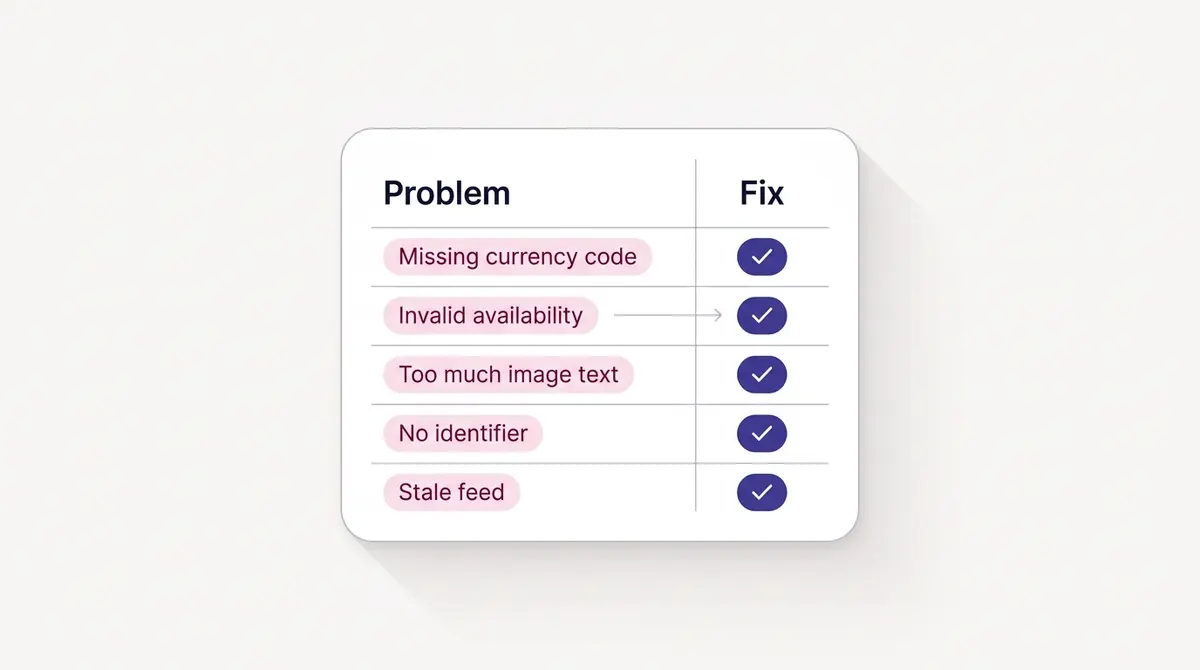
Work through the warnings in this order. First, the structural blockers: a price missing its currency code, an unrecognized availability value, or a broken image_link will each stop an item cold, so resolve those before anything else. Second, the matching fields: a missing brand, gtin, or mpn drops an item into limited performance even when it technically runs. Third, the consistency checks: Meta compares the price and availability in your catalog against your live product page, and a mismatch causes warnings or suppression. This is why a scheduled feed that refreshes at least daily matters, since a price change on your site that never reaches the catalog creates exactly this conflict.
For brands shaped by Malaysian skincare seller Skinlycious, with frequent promotional pricing, the consistency check is the one to watch. If a serum drops to a sale price on the website but the catalog still carries the old figure, the item can be flagged. The fix is operational, not creative: use sale_price and sale_price_effective_date in the feed, and schedule the fetch often enough that promotions and the catalog never disagree.
Step 6: Connect the catalog to your ads
A clean catalog unlocks several formats, and choosing between them is a strategy decision. The table below summarizes what each catalog-driven format does.
| Format | What it does | Typical use |
|---|---|---|
| Dynamic product ads | Shows the specific products a person viewed or carted | Retargeting warm visitors |
| Advantage+ catalog ads | Lets Meta select products from the catalog automatically | Broad prospecting plus retargeting |
| Collection ads | A hero creative above a strip of catalog products | Mobile browse-to-buy |
| Shops | An on-platform storefront pulling from the catalog | Always-on discovery |
These are catalog-driven formats; the wider menu of ad types and placements is covered in Meta ad formats explained. For retargeting, dynamic product ads are the workhorse. They pair the catalog with Pixel signals so a shopper who looked at a smart plug sees that plug again, the way Malaysian smart home brand Dasher Smart Home might re-engage someone who watched a device demo. Advantage+ catalog ads point the other way: instead of retargeting a known browser, they let Meta choose items from the catalog for cold prospecting, which is the same automation idea behind Advantage+ Sales campaigns. Because the system assembles the creative from your catalog data, the quality of your titles, prices, and images directly shapes what the shopper sees, which is why the earlier steps are not busywork.
Whichever format you pick, the catalog hand-off is the same. You select the catalog and, if you want to limit which items can show, a product set (see the product set section below) at the ad set level, confirm the Pixel events are firing for view, add-to-cart, and purchase, and let the campaign run long enough to clear the learning phase before judging it. Once the catalog is clean and connected, tools like AdPlay.ai can take it from there to assemble and launch the catalog ad to Facebook and Instagram.
Build product sets to control what shows
A product set is a saved subset of the catalog, and it is what you actually attach at the ad set level to decide which items an ad can show. The full catalog is the default, but you rarely want every item competing in every campaign. Sets let you point a prospecting campaign at proven best-sellers, send a clearance campaign at end-of-line stock, and keep a margin-protection campaign on high-value items only. You build a set with rules (filter by availability, price, product type, brand, or any of the custom labels you populated in Step 3) or by hand-picking items.
The custom labels are the real lever here, because they let you slice the catalog the way your business actually thinks. Tag margin tier in one label and season in another, and a set becomes a one-line rule like custom_label_0 equals high-margin. A few sets that most stores end up wanting:
| Product set | Filter or label | Use case |
|---|---|---|
| All products | No filter (full catalog) | Broad Advantage+ catalog prospecting |
| Best sellers | custom_label_2 = bestseller | Prospecting with proven winners |
| High value | price greater than 100 USD | Margin-protected retargeting |
| Seasonal clearance | custom_label_1 = clearance | Moving end-of-line stock |
| By category | product_type contains a range | Theming a campaign around one line |
Keep each set meaningful in size. A set scoped to a handful of items gives delivery very little to optimise across, while a set built around a clear goal (the products you most want to push this month) almost always beats throwing the entire catalog at every campaign. Sets are also where the optional fields from Step 3 pay off: the more accurately each item is tagged, the more precisely you can carve the catalog without touching the feed again.
When dynamic ads show the wrong product, or nothing
A specific failure mode trips up almost everyone running dynamic product ads for the first time: the ads serve the wrong product, the same product to everyone, or nothing at all. The cause is almost always a matching problem between your website and your catalog, not the creative.
Dynamic retargeting works by lining up two ids. When a shopper views a product, your Pixel fires a ViewContent event carrying a content_id. To show that person the exact item they looked at, Meta needs that content_id to match the id of an item in your catalog. If your site sends a variant SKU while the catalog is keyed on a parent id, or the Pixel sends a product handle while the catalog uses a numeric id, the two never line up. The result is a low catalog match rate, and the symptom you see is dynamic ads that fall back to generic products or do not deliver. Meta does not publish a single pass-or-fail match-rate number, so treat it as a quality gauge: the higher the share of your Pixel events that resolve to a real catalog item, the more of your traffic dynamic ads can actually retarget.
Two checks fix most of it. First, confirm the content_id your Pixel sends is the same value as the id field in your catalog. This is one more reason clean event match quality matters, and why a server-side Conversions API feed should carry the same ids as the browser Pixel rather than a second numbering scheme. Second, rule out the simpler cause, a stale feed: if the catalog has not refreshed, now-out-of-stock items get suppressed and the ad has fewer products to draw on, which on a small catalog can look like nothing is delivering at all.
Sell in multiple countries from one catalog
If you sell across borders, you do not need a separate catalog per market. Meta supports country and language feeds (also called override or supplementary feeds) that sit on top of your main catalog and replace only the fields that change for a given market. A country feed can override price, currency, availability, and the product link, so a shopper in one country sees the local price and a localised landing page. A language feed swaps titles and descriptions into another language. Everything else, the images, the ids, the structure, stays inherited from the primary feed.
The practical win is one source of truth. You update a product once in the main catalog, and the overrides apply their market-specific differences on top automatically. That beats duplicating the whole catalog per region, which doubles the maintenance and invites the copies to drift apart. Separate catalogs still make sense when the inventories themselves are genuinely different, two distinct brands for example, but for the same products sold into several countries, overrides are the cleaner pattern and the one that scales as you add markets.
Keep the catalog healthy after launch
A catalog is not a set-and-forget asset. Even with an automatic sync, the data drifts: products get discontinued, descriptions go stale, images get swapped on the site but not in the feed, and a scheduled fetch can fail quietly. A light, regular routine keeps quality from decaying.
Weekly, open the Diagnostics tab and clear new errors and warnings before they pile up, and confirm the last feed fetch actually succeeded rather than assuming it did. Spot-check that prices and availability in the catalog still match the live site, since that mismatch is what quietly suppresses items. Monthly, do a deeper pass: remove discontinued products, refresh tired images and thin descriptions, and review your custom labels so the product sets they drive still reflect what you are promoting now (this season's clearance is not last season's). The goal is simple. The catalog should always describe the store as it is today, because every dynamic and Advantage+ catalog ad is only ever as accurate as the data underneath it.
The pre-launch checklist
Before you spend a cent against a catalog, run the list below. It catches the failures that otherwise surface as quiet underdelivery.
- The catalog sits under your Business Manager, not a personal profile, with the right ad accounts and editors granted access.
- Your sync method matches your scale: a platform connection or scheduled feed for anything that changes, manual upload only for small or test catalogs.
- Every required field is present: id, title, description, availability, condition, price, link, image_link, and at least one of brand, gtin, or mpn.
- Prices read as a number plus a space plus a three-letter currency code, with no symbols, and availability uses an accepted value.
- Images are at least 1024 x 1024, under 8 MB, square where possible, free of promotional text or overlays, with the product centered.
- The catalog price and availability match the live product page, and the feed refreshes at least daily.
- Items show as active with no rejections in the Diagnostics tab, and the Pixel is firing view, add-to-cart, and purchase events with content_ids that match your catalog ids.
- You have allowed for initial review (it can take a day or two) before attaching the catalog to a live campaign.
Get those things right and the catalog stops being a source of mystery rejections and becomes what it should be: a reliable inventory layer that every shopping campaign can pull from. The creative and the targeting still decide whether the ad works, but a clean catalog is the precondition that lets them.
Example ad angles
Representative hooks and formats from the category.
“Showcase ad for a minimalist necklace shot clean on a neutral backdrop”
“Feature Callout ad for a serum bottle with its key claim beside the product”
“How-to or Demo ad for a smart device shown switching on from a phone”
By the numbers
Frequently asked questions
Do I need a Meta product catalog to run any ad?
No. A catalog is only required for catalog-based formats: dynamic product ads, Advantage+ catalog ads, collection ads that pull live products, and Shops. A standard single-image or video ad does not touch the catalog at all. If you sell physical products and want ads that automatically show the right item to the right shopper, the catalog is the data layer those formats read from.
What is the difference between a catalog and the Meta Pixel?
The catalog is your product database: titles, prices, images, availability. The Meta Pixel is the tracking code on your website that records which products people view, add to cart, and buy. Dynamic ads need both. The catalog supplies the products and the Pixel supplies the signals that decide which products to show each person. They are connected but separate, and you set them up in different places.
Can I build a catalog without a developer or a feed file?
Yes. The fastest path for most stores is a platform connection. If you run Shopify, WooCommerce, BigCommerce, or a similar platform, you connect the store once and products sync automatically, including future changes. If you have fewer than around 100 products you can also upload a CSV or use the manual add flow. Feed files and scheduled URLs are mainly for larger or custom catalogs.
Why are my dynamic ads showing the wrong product, no products, or not delivering?
The usual culprit is a matching or freshness problem, not the ad. Dynamic ads only retarget an item when the content_id your Pixel sends matches the id in your catalog exactly, so a SKU-versus-handle mismatch makes ads fall back to generic products or stop delivering. The other common causes are a stale feed that suppresses now-out-of-stock items, an availability value Meta does not recognize, or a price that disagrees with your live site. Confirm the ids line up, set a scheduled feed to fetch at least daily, and use only accepted availability values.
What image size should I use for catalog products?
Meta accepts a minimum of 500 x 500 pixels but recommends at least 1024 x 1024, and many advertisers upload 1200 x 1200 so images stay crisp across feed, Stories, and Marketplace. Keep files under 8 MB, use JPG, PNG, or WebP, and keep product images free of promotional text and overlays, since text-heavy catalog images tend to get reduced delivery (the legacy 20 percent guideline is now a rule of thumb, not a hard cutoff). Square 1:1 images are the safest default because catalog placements crop to several aspect ratios.
How long does it take for a new catalog to be usable?
Product processing usually takes a few hours after upload or a platform sync. Initial review of a new catalog can take a day or two, so build it before you need it rather than the night before a launch. Once products show as active and approved with no warnings, you can attach the catalog to a campaign.
Do I need a GTIN or barcode for every product?
Meta requires at least one unique identifier per item: brand, gtin, or mpn. A GTIN is the standard barcode number for branded retail goods and improves matching, but if you sell handmade, custom, or own-brand products without barcodes you can supply brand plus mpn instead. Missing or incorrectly flagged identifiers are one of the most common feed quality problems, so fill the field that genuinely applies to each item.
What is a product set, and do I need one to run catalog ads?
A product set is a saved subset of your catalog that you attach at the ad set level to control which items an ad can show. You do not strictly need one, since the full catalog is the default, but sets are how you point a campaign at just your best-sellers, your clearance stock, or your high-margin items. You build a set with rules (filter on price, availability, product type, or any custom label you populated) or by hand-picking items, and the custom label fields are the main lever for slicing the catalog the way your business actually thinks.
Sources
- 1.U.S. Census Bureau, Quarterly Retail E-Commerce Sales Report (2026)
- 2.Meta Business Help Center, Product Data Specifications for Catalogs (2025)
- 3.Meta Business Help Center, Product Image Specifications for Catalogs (2025)
- 4.Meta Business Help Center, About Scheduled Data Feed Uploads (2025)
- 5.EMARKETER, Worldwide Retail Ecommerce Forecast 2025 (2025)
- 6.Meta Business Help Center, How to Use the Issues Tab in Your Catalog (2025)
- 7.Meta Business Help Center, Add and Update Catalog Items With a Pixel (2025)
- 8.Meta Business Help Center, Upload Country or Language Feeds to Your Catalog (2025)
Keep exploring
Turn ad research into winning ads
Research the ads that work, generate the creative on-brand, and launch to Meta, all in one tool.
7-day free trial · No credit card required