
Facebook Ads Manager: A Complete Guide (2026)
A plain tour of Meta Ads Manager: how to open it, the three levels, the columns and breakdowns, the attribution setting, and where the Advantage+ defaults live.
Updated December 2026 · Likit Sae Lee, CTO

Meta Ads Manager is the tool you build, run and read paid campaigns in. You open it free at facebook.com/adsmanager, from a Facebook Page, or through Meta Business Suite's All Tools menu, though a personal profile cannot access an ad account until someone grants it advertiser access. It is organized into three levels you cannot skip: the campaign sets the objective, the ad set holds the audience, budget, schedule and placements, and the ad is the creative. You read results in a single table whose meaning you control with two menus, Columns (which metrics show) and Breakdown (how results are sliced by placement, age, device or time). The AI defaults, like Advantage+ Audience, live inside the ad set, where your targeting inputs become suggestions rather than hard rules. Meta earned $196.18 billion in ad revenue in 2025, almost all of it spent through this one interface.
You open Meta Ads Manager for the first time and the screen does not help you. Rows, dropdowns, a chart that toggles, three tabs that look like tabs but behave like folders, and a table with forty columns you did not ask for. Most people learn it by clicking until something breaks. There is a faster way. Ads Manager is built on one structure and two menus, and once you can see them, the whole tool stops feeling like a cockpit and starts feeling like a spreadsheet you happen to spend money in. This is the orientation tour: what the levels are, how to navigate them, and how to read the table without guessing.
Why learning Ads Manager is worth the afternoon
The scale on the other side of this tool explains why it is worth getting comfortable with. Meta reported $196.18 billion in advertising revenue for 2025, part of $200.97 billion in total revenue that grew 22% year over year, and advertising is about 97.6% of that. Almost every dollar of it was spent through Ads Manager. On the demand side, Meta's Family of apps averaged 3.58 billion daily active people in December 2025, up 7% year over year, and Facebook alone counts more than 3 billion monthly active users, per Hootsuite's roundup. Those are Meta's own audience figures, so treat them as directional, but the order of magnitude is not in dispute.
The point for you is not the headline number. It is that about 10 million advertisers, a figure recirculated across stat roundups from older (2020) Statista data, compete inside this same interface, and the ones who read it fluently spend better than the ones who guess. Ads Manager is where you decide what gets made, who sees it and whether it worked. Fluency here is not optional polish. It is the difference between a dashboard that confuses you and one that tells you what to build next.
The platform also has its own gravity in the wider market. Facebook's worldwide ad revenue was forecast at $116.53 billion for 2025, per Hootsuite citing eMarketer, which is a reminder that this single channel still concentrates an enormous share of global ad budgets. None of that scale helps you if the interface stays opaque. The good news is that the whole tool reduces to one structure and two menus, and the rest of this tour is just those three things in detail. Learn the structure once and it does not change between accounts, between objectives or between the small test campaign and the large one. The screen looks different at a glance, but underneath it is always the same three levels and the same two table controls.
What you need, and how to open Ads Manager
Before any of the structure matters you need a way in, and a surprising number of first-timers stall right here. Ads Manager is free to use: you pay only for the ad spend you set yourself, never for the tool. But it will not open for a bare personal profile. Three things have to exist first. You need a Facebook Page, because an ad always runs from a Page rather than from a person. You need a payment method on file, a card or other billing method the ad account can charge. And you ideally want a business portfolio, the asset-and-permissions container Meta used to call Business Manager, which keeps your ad account, Pages and datasets in one place. If you are starting from zero, the account setup guide walks those creation steps in order.
Once they exist, there are three doors onto the same screen. The fastest is the direct address: type facebook.com/adsmanager into the browser and you land in the ad account you last used. You can also open Ads Manager from your Facebook Page, or from Meta Business Suite by clicking All Tools and choosing Ads Manager in the menu. All three lead to the identical interface, so pick whichever is fewest clicks from where you already are.
A common wall is permissions. A personal profile on its own cannot see an ad account; access is granted per person, per account, at a named level. To build and run campaigns you need at least advertiser access to the ad account, handed to you by whoever owns the portfolio. If you open Ads Manager and find no ad account at all, or you can read the reports but every build button is greyed out, the cause is almost always the access level rather than a bug: someone needs to add you, or to lift you from analyst, which is view only, to advertiser.
Checking spend on the go: the mobile app
You do not have to be at a desktop to keep an eye on a live campaign. Meta publishes a Meta Ads Manager app for iOS on the App Store and for Android on Google Play. It is built for monitoring and light edits: check results in real time, pause or switch a campaign on, swap a creative, and get alerts when something moves. It carries fewer controls than the desktop interface, so treat it as the remote, not the workshop. Build and structure the campaign on a big screen, then use the phone to watch spend and react when you are away from the desk.
The three levels: campaign, ad set, ad
Everything in Ads Manager hangs off a three-level hierarchy, and the official Meta structure is the same for every account. Get this and half the confusion evaporates, because every setting you ever touch belongs to exactly one of these levels.
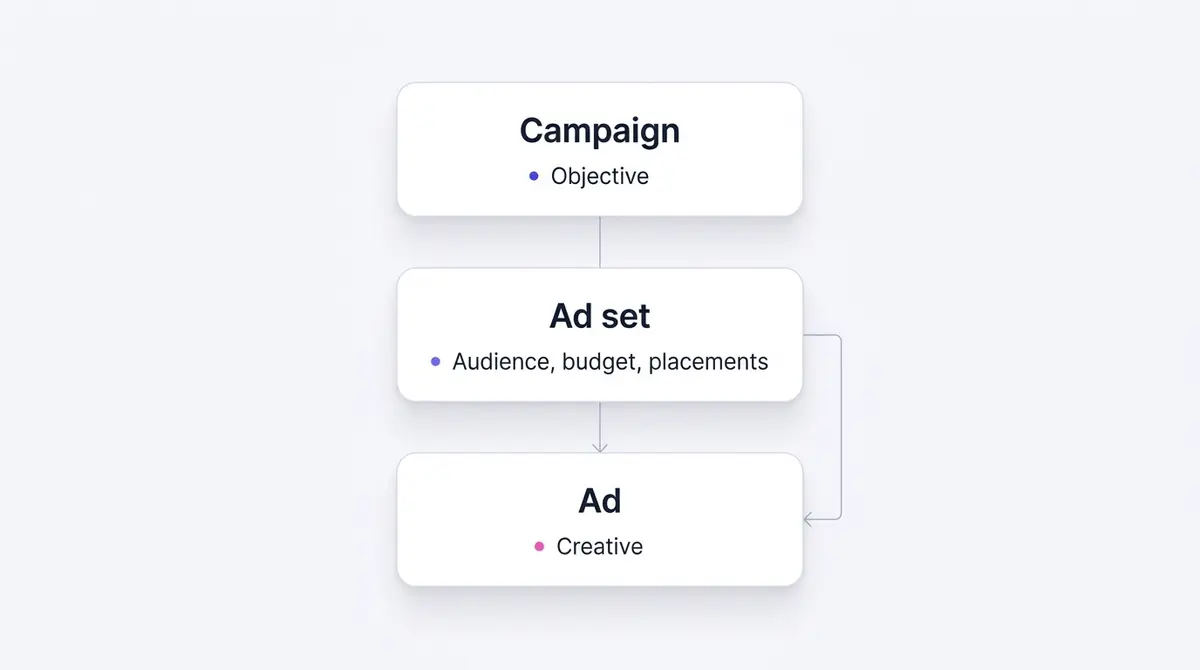
The campaign sits at the top and carries one thing: the objective. This is the goal you hand to Meta, such as sales, leads, traffic, engagement or awareness, and it shapes how the whole campaign is optimized and how some controls below it behave. Budget can live here too, set once for the campaign to share out, rather than per ad set.
The ad set sits in the middle and carries the levers that decide delivery: the audience (who Meta tries to reach), the budget and schedule (how much and when), and the placements (which surfaces the ad can appear on, like Feed, Reels, Stories or Audience Network). If two groups of people need different budgets or different audiences, they are two ad sets, not two ads.
The ad sits at the bottom and is the creative itself: the image or video, the primary text, the headline and the call-to-action button. This is the only level your audience ever sees. Everything above it is plumbing.
| Level | What it controls | Typical question it answers |
|---|---|---|
| Campaign | Objective, and optionally the shared budget | What am I trying to get? |
| Ad set | Audience, budget, schedule, placements | Who sees it, where, and for how much? |
| Ad | Creative, copy, headline, call to action | What do they actually see? |
The rule that trips people up: you cannot skip a level. Every ad must live in an ad set, and every ad set must live in a campaign. That is why starting a new campaign always walks you down all three in sequence. If you want the build steps themselves rather than the map, the campaign setup guide covers them in order; here we are just naming the rooms.
Navigating between the levels
Once a campaign exists, the three levels show up as three tabs across the top of the work area: Campaigns, Ad sets, Ads. They look like browser tabs but behave like folders that filter each other. Click into a single campaign and the Ad sets tab narrows to just that campaign's ad sets. Click one ad set and the Ads tab narrows to that ad set's ads. This drill-down is the main way you move around: start broad, then click deeper until you are looking at the one ad you care about.
The left rail holds navigation to other parts of Ads Manager and the wider toolset, and the top bar holds the account selector (important if you manage more than one ad account), the date range, and the filter and search controls. The date range deserves a habit: nearly every number in the table is scoped to it, so a metric that looks alarming is sometimes just a seven-day window catching a slow stretch. Change the range before you change a campaign.
Filter and search earn more than the glance most people give them, because in a busy account they are the fastest way to cut hundreds of rows down to the handful you came for. The search box finds a campaign, ad set or ad by name, which is reason enough to name things deliberately the day you build them. The filter beside it is the sharper tool: filter by delivery status to see only what is Active (or only what is off, in review or rejected), by objective to compare like with like, or by a metric threshold to surface, say, every ad set spending without converting. Scrolling the whole account to find one ad is a habit worth dropping; a filter does it in a click.
Two controls do most of the day-to-day work and are easy to miss because they sit quietly above the table: the toggle switch beside each row that pauses or activates it, and the Edit panel that slides out when you select a row. Pausing is instant and reversible, which makes it the safest first move when something looks wrong: pause, investigate, then decide. Resist editing a live ad set's core targeting on a hunch, because meaningful edits can send delivery back into the learning phase.
Reading the table: the Columns menu
The table is where most of your time goes, and its single most useful fact is that it is a view, not the data. The numbers exist regardless; the Columns dropdown decides which of them you see. This is the heart of reading Ads Manager well.
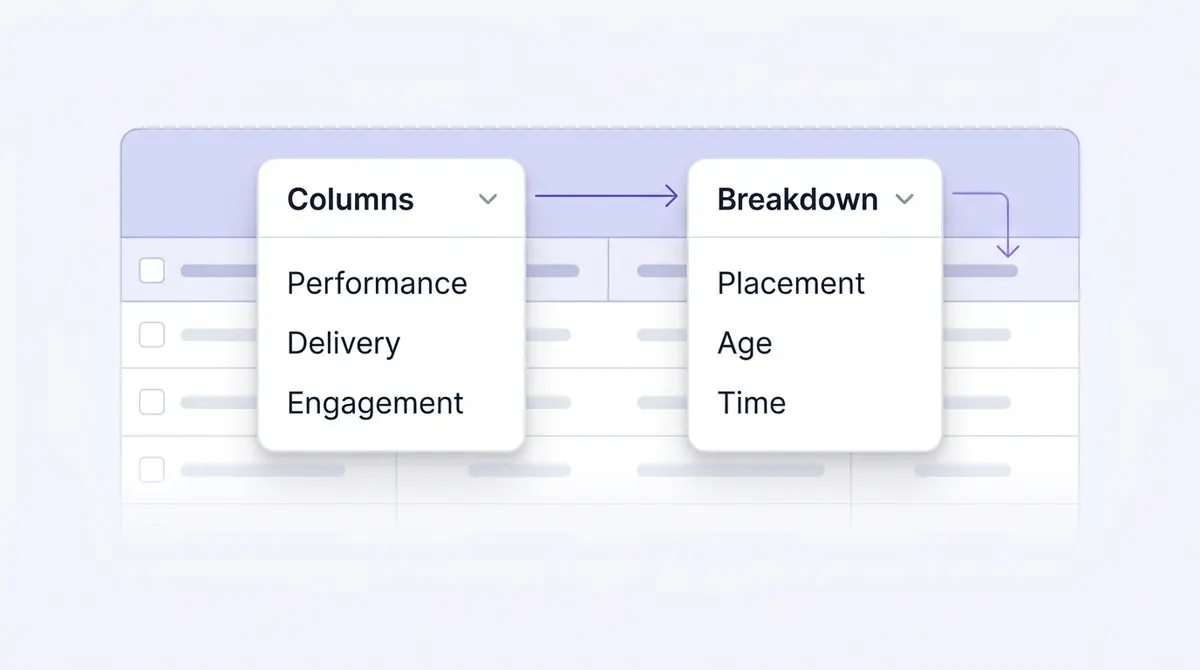
Click Columns and you get presets, each a curated set of metrics for a different question:
- Performance is the default and shows results, reach, cost per result and amount spent: the "is this working" view.
- Delivery leans on impressions, frequency, CPM and reach: the "what is it costing to show this" view.
- Engagement surfaces post reactions, comments, shares and saves: the "are people responding" view.
- Video engagement brings in plays, ThruPlays and average watch time, which matter when the creative is a video ad.
When no preset has the exact mix you want, choose Customize columns at the bottom of the menu. This opens a picker where you select individual metrics, reorder them and save the result as your own named preset. Most experienced buyers build one custom preset that puts their decision metric (usually cost per result or ROAS) next to the diagnostic metrics they trust, then live in that view. If a column's name is doing more work than you can decode, the ad metrics guide defines the ones that actually drive decisions. Switching presets never alters results, so explore freely.
What "good" looks like in those columns depends entirely on your industry, objective and market, but neutral benchmarks give a midpoint. WordStream's 2024 analysis of 2,946 campaigns run between February 2023 and April 2024 put the median CTR for Facebook traffic campaigns at 1.57%, up slightly from 1.51%, and the median CPC at $0.77, down from $0.83. Those are directional medians across all industries, not a target to hit. A retargeting campaign in a competitive niche can sit well off them with nothing wrong. The benchmark tells you the scale; your own account history tells you the truth.
Slicing results: the Breakdown menu
Next to Columns sits Breakdown, and the two are often confused. Columns changes which metrics show. Breakdown changes how each row is split apart. They answer different questions and you frequently use both at once.
Breakdown slices the same results along a dimension. By delivery, you can split by placement, age, gender, country, region or impression device. By action, you can split by the type of result. By time, you can split by day or by hour. The payoff is that a flat row hides pockets. A video that looks mediocre overall might be excellent in Feed and terrible in Reels, which is a placement fix, not a reason to kill the ad. An age-by-gender split often reveals one profitable segment buried inside an average that looked unremarkable.
One caveat governs how far to trust it. Some demographic and conversion combinations are restricted for privacy and render as a dash rather than a number. More broadly, broken-down conversion data is less reliable than broken-down upper-funnel data, because privacy-driven measurement strips some demographic and placement detail from conversions. So break impressions, CTR and video plays down freely, and treat a broken-down purchase or lead number as a strong hint rather than a final verdict. For the full discipline of reading these numbers week to week, the ad reporting guide goes deeper than this tour does.
The attribution setting: the frame around the table
Columns decides which metrics show and Breakdown decides how each row is sliced. One more control decides what counts as a result in the first place, and it is the quiet reason your Ads Manager conversion total rarely matches the number in your website analytics or your store's own dashboard. It is the attribution setting, and unlike the two menus it does not sit above the table at all. It lives down inside the ad set.
Attribution is the window of time after someone clicks or views your ad in which Meta will still credit a resulting conversion to that ad. After Meta's March 2026 change, the default is 7-day click-through, 1-day engage-through and 1-day view-through: a sale counts if it lands within seven days of a link click, within one day of a non-link engagement (a like, comment, share or save), or within one day of a view without any click. Meta redefined click-through to require an actual link click and split the old social-interaction credit into the new engage-through type in March 2026. Your store backend, by contrast, usually credits the last click in the session, so the two are measuring different things and will never tie out to the cent. That gap is normal, not a tracking failure, and it explains most of the "but Shopify says something different" confusion.
This is why the attribution setting belongs in your head while you read the table, even though it is not one of the two menus. Every cost-per-result and ROAS figure you scan is only as meaningful as the window behind it. Widen the window and the same spend credits more conversions, so cost per result falls on paper without anything real changing underneath. The discipline is simple: pick one window, hold it constant across every creative test, and compare like with like. The full mechanics, including which view-through windows Meta removed in January 2026, are in the attribution windows guide.
Exporting and scheduling reports
Saving a column preset gets the right numbers on screen. Getting them out of Ads Manager is a separate move, and it is the one that turns a Monday-morning check into something a manager or client can read without logging in. Straight from the results table, the export control hands you the current view as a CSV or an Excel file, formatted or raw, which is enough for an ad-hoc pull or a quick share.
For anything you produce on a rhythm, the dedicated Ads Reporting surface does more. Build the report once, then set it to run on a recurring cadence, daily, weekly or monthly, and email itself to a list of people who have access to the account. That removes the standing chore of rebuilding the same export every week and keeps the right people looped in automatically. One access note worth knowing before you promise someone a report: exporting and scheduling need at least analyst-level access to the account, so a viewer-only seat will not be able to pull or send the file.
Where the Advantage+ defaults live and what they mean
The biggest change in how Ads Manager behaves over the last few years is that Meta's AI now sets many defaults for you, and those defaults live mostly inside the ad set. Knowing where they are is half of staying in control.
Advantage+ Audience is now the default targeting model. The interests, behaviours and demographics you enter no longer act as hard fences. They become audience suggestions that guide Meta's system, which is then free to deliver beyond them if it finds better-performing people. Only two things stay firm: your location and a minimum age. If you genuinely need a hard demographic boundary, you switch to the original audience controls, but the default leans on the model. Advantage+ Placements works the same way: by default Meta spreads delivery across all eligible surfaces, and you opt into manual placements only when you have a reason.
Why the shift? Meta has staked a lot on this AI layer. Its AI-powered ad solutions, including the Advantage+ suite, were running at an annual revenue run rate of over $60 billion as of the third quarter of 2025, per Marketing Dive. That is the commercial weight behind defaults that increasingly assume the machine should decide.
The clearest example of the new philosophy is the removal of detailed targeting exclusions. Starting in late June 2024, Meta took away the ability to exclude interests and behaviours from new campaigns in Ads Manager, and set 31 January 2025 as the cutoff after which existing campaigns still using those exclusions stopped delivering, as Social Media Today reported. Meta's stated reason was performance: its own testing found a 22.6% lower median cost per conversion without exclusions. That is Meta's own internal claim, not an independently verified result, so weigh it as the vendor's argument rather than settled fact. Either way, the practical takeaway is the same. You now shape your audience mainly through inclusions, location, age and the creative itself, and you lean on optimization to do the narrowing you used to do by hand.
Guardrails: account limits and the spending cap
A few hard boundaries sit around the three levels, and they are worth knowing before you bump into one mid-campaign. The first is the ad account spending limit: an optional lifetime ceiling you set on the whole account. Once total spend across every campaign reaches it, Meta pauses delivery account-wide and your ads stop spending until you raise, remove or reset the limit, per Meta's Business Help Center. It is a safety brake, not a budget, and it sits above the per-campaign and per-ad-set budgets rather than replacing them. If every ad goes quiet at once for no obvious reason, this cap is one of the first things to check.
There are also caps on how many objects one ad account can hold: a maximum number of campaigns, ad sets and ads, plus a limit on how many ads can live inside a single ad set. The exact figures change and are listed on Meta's own limits page, so read the current number there rather than trusting a stat roundup. In practice the learning phase bites long before any object cap does: each ad set wants roughly 50 optimization events within about seven days to stabilise, per Meta, so a real account runs out of useful budget per ad set well before it runs out of room for ad sets. One more container limit worth a mention: how many ad accounts a single business portfolio can hold varies by the portfolio rather than being one universal number, so do not assume a fixed allowance when you plan how to split clients or brands across accounts.
Ads Manager versus Meta Business Suite
A lot of confusion is really a mix-up between two tools that share a login. They are not the same, and using the wrong one for the job wastes time.
| Meta Business Suite | Meta Ads Manager | |
|---|---|---|
| Main job | Organic content and community | Paid campaign build and reporting |
| Posting and scheduling | Yes, this is its home | No |
| Inbox and comments | Yes | No |
| Boost a post | Yes, simplified | Not the place for it |
| Full campaign structure (levels) | No | Yes |
| Columns and breakdowns | Limited | Full |
| Advantage+ controls | Minimal | Full |
Business Suite is where you schedule a week of posts, answer messages, read Page insights and, if you want, boost a post with a few clicks. Ads Manager is where you build a structured campaign, control the audience and placements, and read deep performance reporting. A useful rule: if the question is "what should we post," use Business Suite; if the question is "what should we spend, on whom, and is it working," use Ads Manager. Both sit inside your business portfolio (the asset and permissions container formerly called Business Manager), alongside your datasets, the measurement tool Meta renamed from the Pixel. Keeping those three names straight saves a surprising amount of navigation frustration.
Reading a real campaign in the table
The tour comes together on a real example. Picture a skincare advertiser running a creative test. A brand like Skinlycious runs a before-and-after static ad while a brand like Shakura runs a testimonial carousel about pigmentation fading after a facial course, and a clinic like UR Klinik runs an offer ad for a free skin assessment booked through an instant form. Three ads, possibly three ad sets, one campaign with a leads or sales objective at the top.
To read this in Ads Manager you would set the date range to the test window, switch Columns to a custom preset that puts cost per result beside CTR and frequency, and scan the ad-level rows. The before-and-after might pull the best CTR; the testimonial might convert cheaper despite fewer clicks; the offer ad might win on cost per lead but fade as frequency climbs. Then you reach for Breakdown: split by placement to see if the carousel is carried by Feed, and split by age and gender to see which pocket the testimonial actually lands in. That loop, read the table, slice it, decide which ad to scale and which to retire, is the entire job. Keeping research, generation, editing and Meta launch in one place is the idea behind a platform like AdPlay.ai, but the reading discipline is the same wherever you do it: the structure tells you where to look, the two menus tell you what you are looking at, and your own numbers, not a borrowed benchmark, tell you what to make next.
Example ad angles
Representative hooks and formats from the category.
“Testimonial ad for pigmentation fading after a Shakura facial course”
“Before and After ad for clearer skin tracked across an Ads Manager test”
“Discount or Offer ad for a free skin assessment booked via an instant form”
By the numbers
Frequently asked questions
How do I open Facebook Ads Manager, and is it free?
Ads Manager is free to use: you pay only for the ad spend you set, never for the tool. There are three ways in, all leading to the same screen. Go straight to facebook.com/adsmanager, open it from your Facebook Page, or in Meta Business Suite click All Tools and choose Ads Manager. You do need a Facebook Page, a payment method and, ideally, a business portfolio in place first. A personal profile on its own cannot access an ad account until the portfolio owner grants it at least advertiser access.
What is the difference between Meta Ads Manager and Meta Business Suite?
They solve different jobs. Meta Business Suite is the day-to-day hub for organic content: scheduling posts, replying to the inbox, reading Page insights, and the occasional light boost. Ads Manager is the dedicated campaign tool for building, optimizing and deeply reporting on paid ads across Facebook, Instagram, Messenger and Audience Network. If you are running real budget against a sales or lead objective, you want Ads Manager, because the controls and reporting in Business Suite are deliberately simplified.
What are the three levels in Ads Manager and why can't I skip one?
Every ad sits inside a three-level hierarchy: campaign, ad set, ad. The campaign carries the objective (what you want Meta to optimize for). The ad set carries the audience, budget, schedule and placements. The ad carries the creative itself: the image or video, primary text, headline and call to action. You cannot create an ad without an ad set to hold it, and you cannot create an ad set without a campaign above it, which is why a new campaign always walks you down all three levels in order.
Where do I change what metrics the Ads Manager table shows?
Use the Columns dropdown above the table. It holds presets like Performance, Delivery, Engagement and Video engagement, each swapping in a different set of metrics. When no preset has the exact mix you want, choose Customize columns to pick individual metrics and save your own preset. The table you see is a view, not the data itself, so changing columns never changes results, only which numbers are visible.
What does the Breakdown menu do, and why do some cells show a dash?
Breakdown slices the same results by a dimension: placement, age, gender, country, region, impression device, or by time. It answers questions a flat row hides, like whether a video wins in Feed but dies in Reels. Some demographic and conversion combinations are restricted for privacy and render as a dash rather than a number. Treat upper-funnel breakdowns like impressions and CTR as reliable, and broken-down conversion numbers as a hint rather than a verdict.
Where do the Advantage+ defaults live in Ads Manager?
Inside the ad set, in the audience and placements sections. Advantage+ Audience is now the default targeting model: the interests, behaviours and demographics you enter become audience suggestions that guide Meta's system rather than hard fences. Only your location and a minimum age act as firm controls. Advantage+ Placements similarly lets Meta spread delivery across all eligible surfaces unless you switch to manual placements.
Why don't the conversions in Ads Manager match my website or store totals?
Because they measure different things over different windows. Ads Manager credits a conversion using its attribution setting, which after Meta's March 2026 change defaults to 7-day click-through, 1-day engage-through and 1-day view-through: a sale counts if it happens within seven days of a link click, within one day of a non-link engagement (a like, comment, share or save), or within one day of a view without any click. Your website analytics or store backend usually credits the last click in the session instead, so the two will never tie out to the cent. The attribution setting lives inside the ad set, and widening it makes the same spend look more efficient, so always compare cost figures captured on the same window.
Can I run and manage ads from the Ads Manager phone app?
Yes, within limits. Meta publishes a Meta Ads Manager app for iOS on the App Store and for Android on Google Play. It is built for monitoring and light edits: check real-time results, pause or switch a campaign on, swap a creative, and get alerts when something changes. It carries fewer controls than the desktop interface, so the practical pattern is to build and structure campaigns on a desktop and use the phone to watch spend and react when you are away from it.
Sources
- 1.Meta, Reports Fourth Quarter and Full Year 2025 Results (2026)
- 2.WordStream, Facebook Ads Benchmarks 2024 (2024)
- 3.Social Media Today, Meta Removes Detailed Targeting Exclusions From Ad Campaigns (2024)
- 4.Marketing Dive, Meta's AI bets supercharge marketing efficiency (2025)
- 5.Hootsuite, Facebook statistics every marketer needs (2025)
- 6.Search Engine Land, Facebook statistics guide (2025)
- 7.Meta Business Help Center, What are the advertising levels in Meta Ads Manager (2025)
- 8.Meta Business Help Center, About column presets in Ads Manager (2025)
- 9.Meta Business Help Center, About Meta Ads Manager App (2026)
- 10.Meta Business Help Center, About ad account permissions (2026)
- 11.Meta Business Help Center, How to export ad performance data in Meta Ads Manager (2026)
- 12.Meta Business Help Center, Run a recurring report and send it by email in Ads Reporting (2026)
- 13.Meta Business Help Center, Campaign, Ad Set and Ad Limits Per Ad Account (2026)
- 14.Meta Business Help Center, About ad account spending limits (2026)
- 15.Meta Business Help Center, About the learning phase (2026)
- 16.Jon Loomer Digital, How Meta Ads Attribution Works in 2026 (2026)
Keep exploring
Turn ad research into winning ads
Research the ads that work, generate the creative on-brand, and launch to Meta, all in one tool.
7-day free trial · No credit card required